GasPulse guides · October 15, 2026
Gas-price widgets for iPhone: setup and refreshes
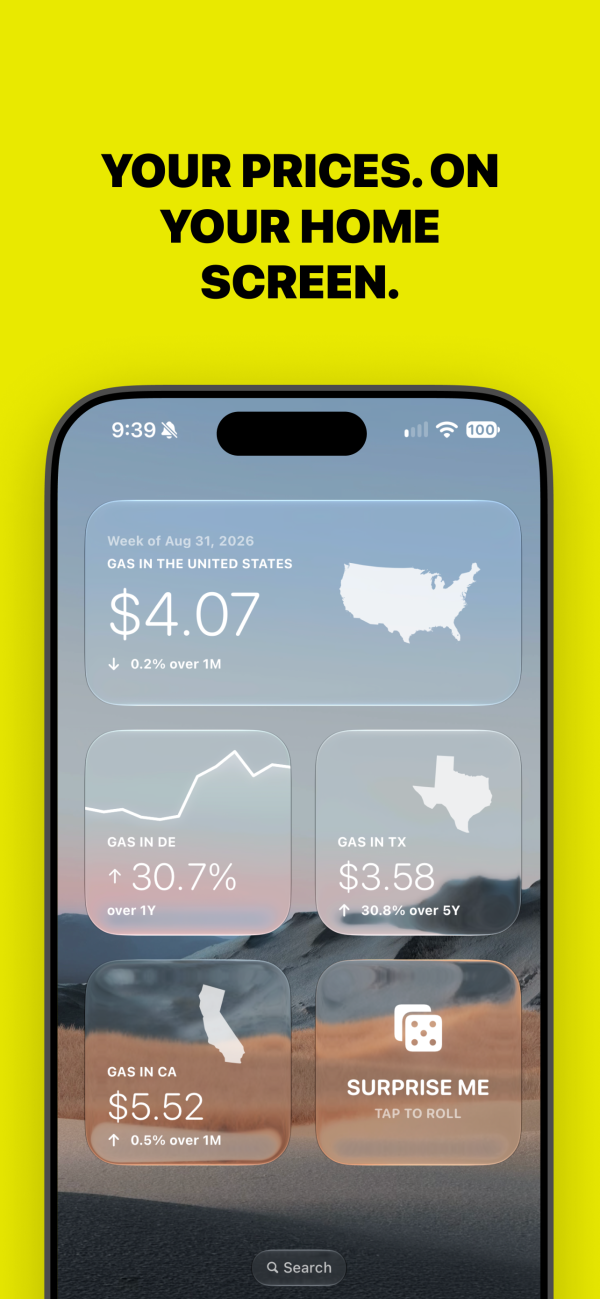
Keep regular-gas prices and trends a glance away. Add GasPulse to your Home Screen, Lock Screen, or StandBy, then choose the area and history range you want to follow.
The released GasPulse widgets show regular gasoline. Gas and Diesel are available inside the app. You need GasPulse installed on an iPhone with iOS 18 or later. Check the current App Store requirements.
Add a Home Screen widget
- Touch and hold an empty part of your Home Screen until the icons move. Tap Edit, then Add Widget.
- Find GasPulse. Choose its price widget or Trend with Chart, select a size, tap Add Widget, then Done.
- Touch and hold the added widget and choose Edit Widget. Set Area and Timeline, then tap outside to finish.
Timeline choices are 1M, 3M, 6M, 1Y, and 5Y. They control the history comparison, not how often prices refresh. Add separate widgets to follow different areas or time ranges. Small and medium layouts are available on the Home Screen.
Add a Lock Screen widget
- Touch and hold the Lock Screen, choose Customize, and select the Lock Screen.
- Tap Add Widgets, find GasPulse, and choose a widget that fits the space. Remove another widget first if necessary.
- Tap the added widget while editing to choose its area and timeline, then finish with Done.
Lock Screen layouts are compact: the price widget supports inline and rectangular spaces; Trend with Chart uses a rectangular space. Labels and controls can vary with your iOS version. Apple’s current widget setup instructions show the system controls.
Use GasPulse in StandBy
With StandBy enabled, charge your iPhone, place it on its side, and keep it stationary. In the widget view, touch and hold a widget stack, unlock if prompted, and add GasPulse. StandBy uses the Home Screen widget in a layout suited to viewing at a distance. Display behavior depends on your iPhone. See Apple’s StandBy guide.
When does the widget refresh?
GasPulse requests another widget timeline after about six hours. This is a request to iOS, not a guaranteed delivery interval. Apple’s WidgetKit manages a system budget and can delay or combine refreshes. The widget does not run continuously. Apple explains how widget refreshes are scheduled.
A refresh also does not create a new fuel-price observation. Official EIA averages update weekly; a fresh, labeled GasPulse estimate may appear between releases. The reporting date and any estimate label matter more than the time you last looked at the widget. Understand observation, publication, and refresh dates.
If the widget looks old or unavailable
- Check its configuration. Each widget has its own Area and Timeline. A regional series can legitimately match another state’s value.
- Open GasPulse with a connection. Check the same area’s source and reporting date, then allow iOS time to reload the widget. Opening the app does not guarantee an immediate widget update.
- Respect unavailable data. The widget can use eligible saved data when a request fails. It can show “Data unavailable” when a current reading cannot be established; do not treat an old screenshot or placeholder as a fresh price.
- If GasPulse is missing from the gallery, confirm that GasPulse is installed and follow Apple’s widget setup instructions for your iOS version. If the problem persists, contact support with your iOS version, app version, widget type, selected area, and the date shown.
Use the widget for area-wide context. It does not list station locations or quote a particular pump price. Read how observations, modeled estimates, and coverage differ.